How to access the Zild API
Generate a user API key, understand its permission scope, and connect tools such as Claude Code and Codex directly to the Zild API.
Generate your API key
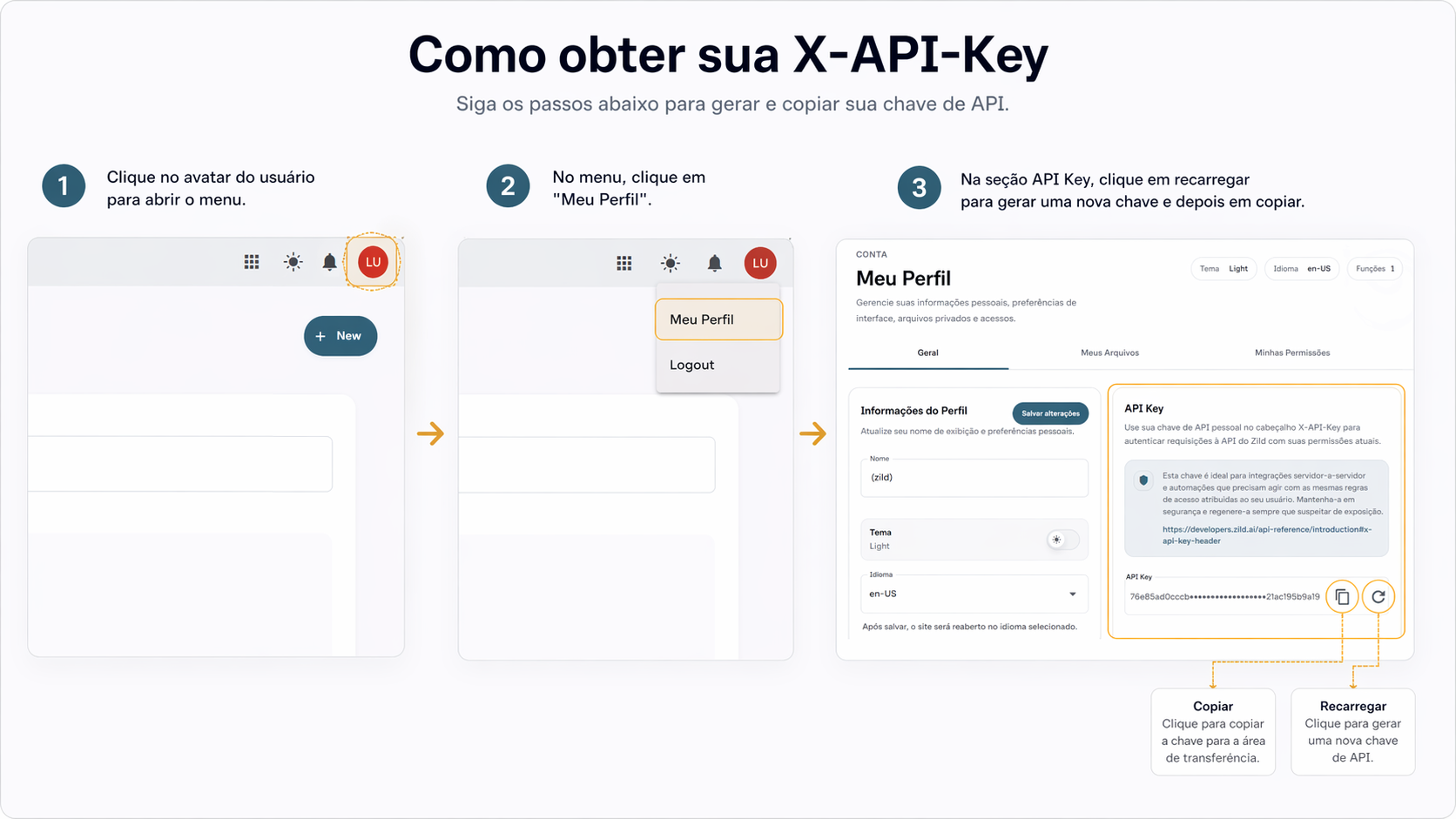
- Sign in to Zild and open your Profile.
- Find the API Key section and choose the option to generate a key.
- Copy the generated value and store it in a secure secret manager. Do not add it to source code, repositories, logs, screenshots, or shared documents.
Authenticate requests
Send the key in the X-API-Key header on every Zild API request:
X-API-Key: YOUR_USER_API_KEYExample:
curl --request GET \
  --url 'https://api.zild.ai/Agent' \
  --header 'X-API-Key: YOUR_USER_API_KEY'
The key uses your permissions
A generated API key has the same access as the user who generated it. It can read or change only the resources that user is allowed to access in Zild. If the user's roles, groups, tenant access, or permissions change, the effective API access changes accordingly.
Treat the key as the user's credentials. Create it for the person or service whose permission scope is appropriate, apply least privilege, and replace it immediately if it may have been exposed.
Use it with AI coding agents
You can securely provide the API key to desktop tools such as Claude Code and Codex so an agent can call the Zild API directly. Store it in the tool's secret or environment configuration and instruct the agent to send X-API-Key: YOUR_USER_API_KEY with requests to https://api.zild.ai.
The agent receives no additional Zild privileges: every API action remains limited to the access of the user who generated the key. Review the permissions and the requested operation before allowing an agent to use the credential.