moday.com
Connect Zild Assist conversations to contacts, opportunities and tickets in monday.com. Review the fields and integration setup with Zild Assist.
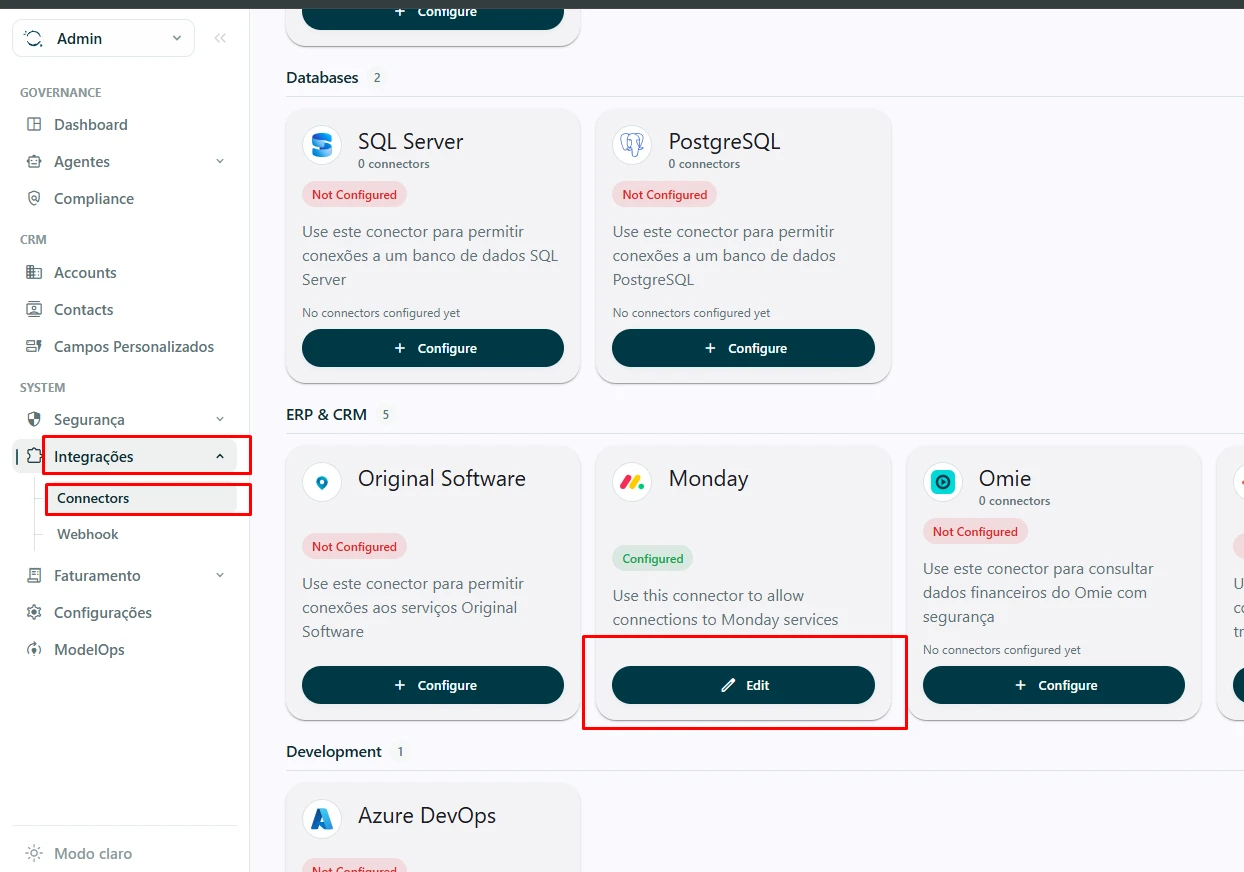
Open Zild Admin → Integrations → Connectors to configure connections to external systems. The ERP & CRM monday connector enables mondayZap in Zild Assist.
How monday and Zild Assist work together
mondayZap connects WhatsApp conversations in Zild Assist to your monday.com operation. Link the contact to a monday record and view mapped contact, opportunity or ticket fields during the conversation. When you end the conversation in mondayZap, its messages are automatically recorded in the linked record’s activity history on monday.com.
Ending the conversation triggers the history record. Link the contact and end the conversation to complete the workflow.
1. Open the monday connector
Open Zild, select Admin, then Integrations → Connectors. Find ERP & CRM monday and click Edit.
2. Configure the access token
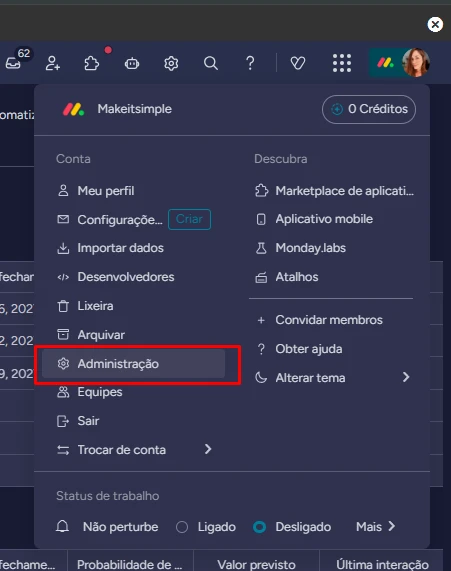
In the current connector, enter your monday.com key in ApiKey. The GraphQL URL and version are configured by the Zild administrator on the server. The PDF screenshots show an earlier screen version.
- In monday.com, open the profile menu → Developers → API token → Show and copy the token.
- Administrators can also use Administration → Connections → Personal API token, as shown in the manual screenshots.
- Enter the token in ApiKey. It uses your user’s board and record permissions.
3. Map boards and columns
| Connector field | Value |
|---|---|
| Opportunities board | The monday CRM Opportunities board ID. |
| Opportunity contact column ID | The Connect boards column ID linking Opportunities to Contacts. |
| Contacts board | The Contacts board ID. |
| Tickets board | The monday Service Tickets board ID. |
| Ticket contact column ID | The Connect boards column ID linking Tickets to Contacts. |
Use one Contacts board. Even when using both monday CRM and monday Service, configure a single shared Contacts board.
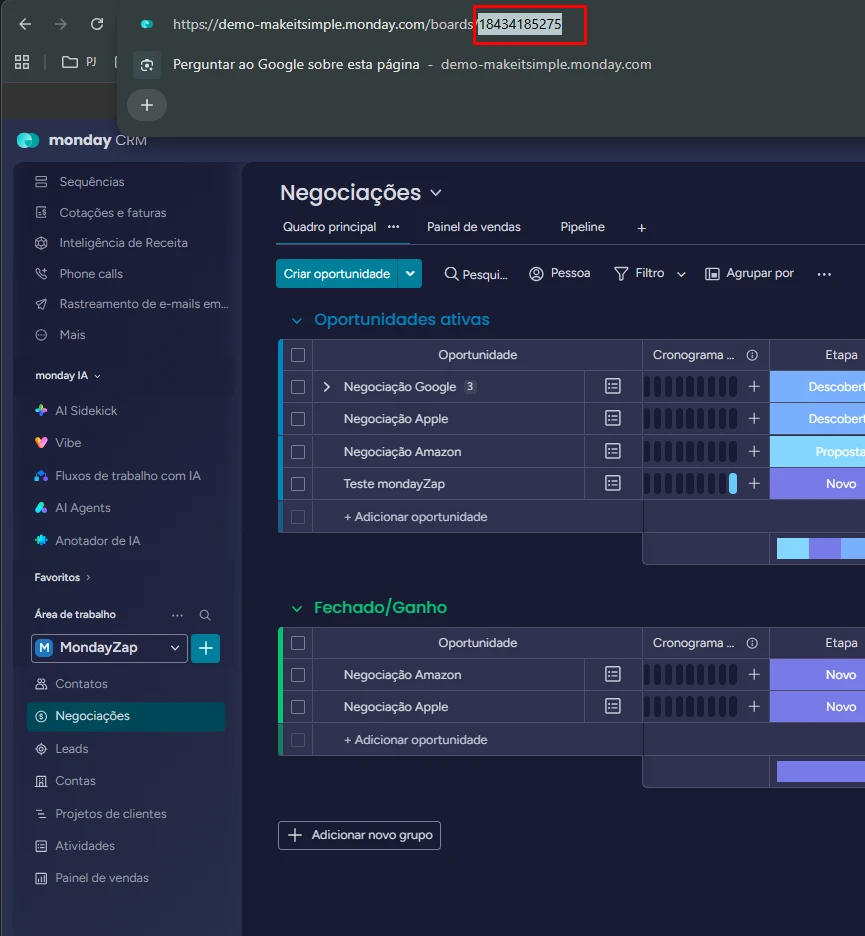
Find a board ID
Open the board and copy its numeric ID from the URL.
Find a column ID
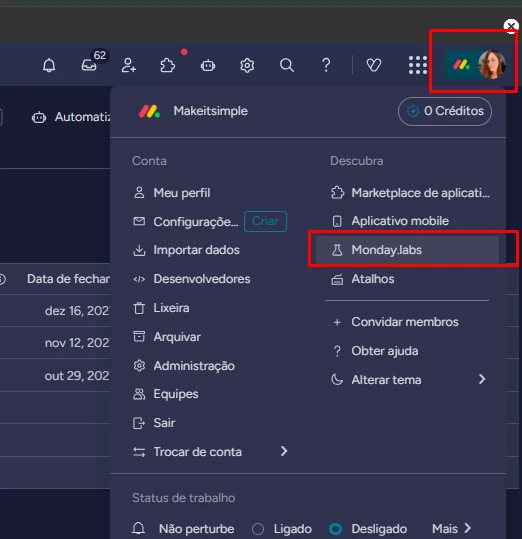
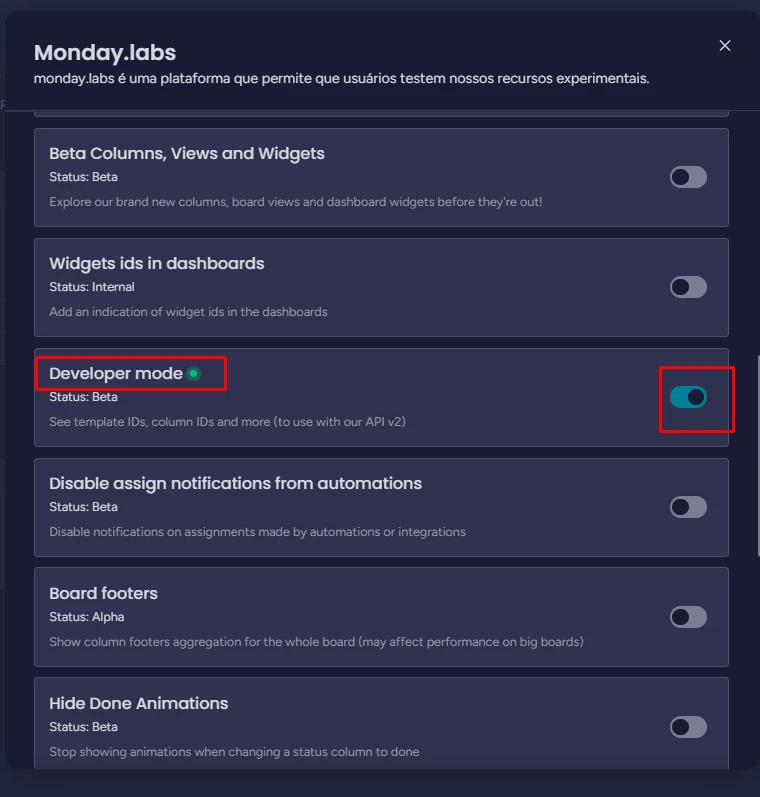
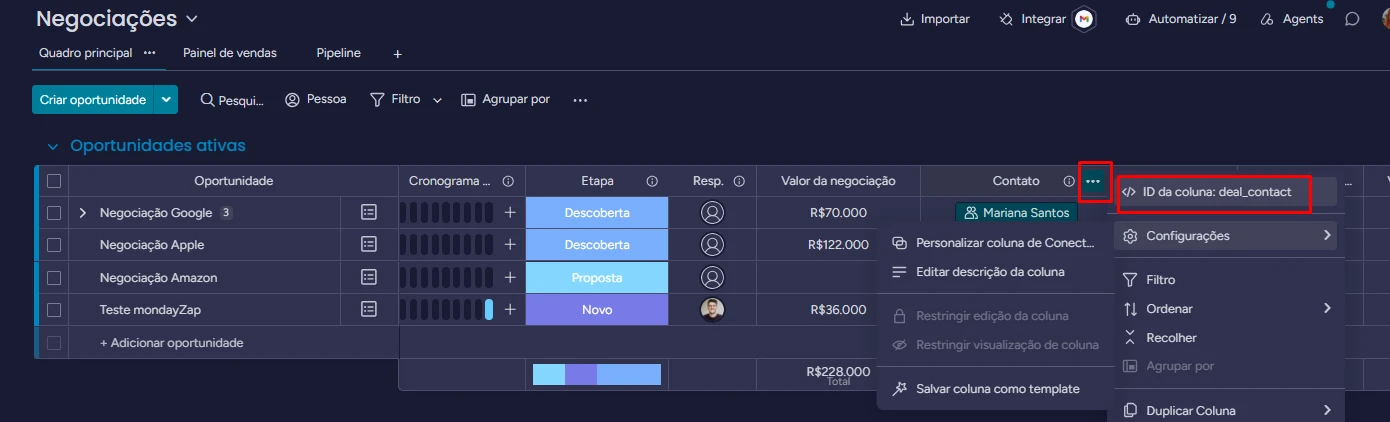
Open monday.labs from your profile menu and enable Developer mode. After the page refreshes, open the column’s three-dot menu and select Column ID to copy the identifier.
4. Map Assist fields and save
In From monday, select the source column. In To Zild Assist, enter the label displayed in Assist. You can customize the label; its value still comes from the selected monday column.
- monday CRM: map Contacts and Opportunities.
- monday Service: map Contacts and Tickets.
- Both products: map Contacts, Tickets and Opportunities.
Click Save. Resolve any errors before starting a conversation.
5. Start a conversation in Zild Assist
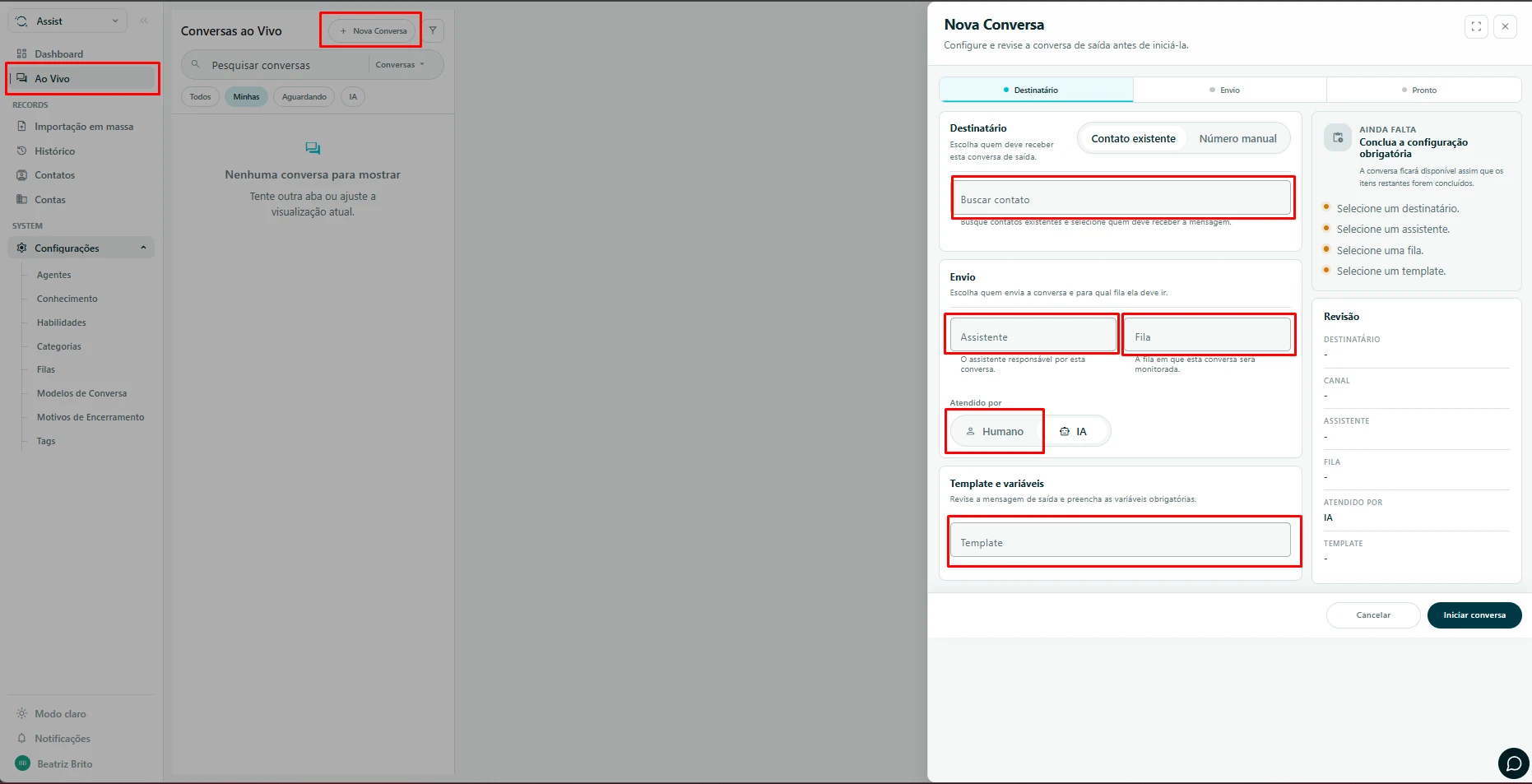
Select Zild Assist from the app selector and start a new conversation. Find an existing Zild contact or enter a phone number. Select the agent, queue and service type. Choose AI or Human in the handler field and select the first-message template.
Prerequisite: approved and active template
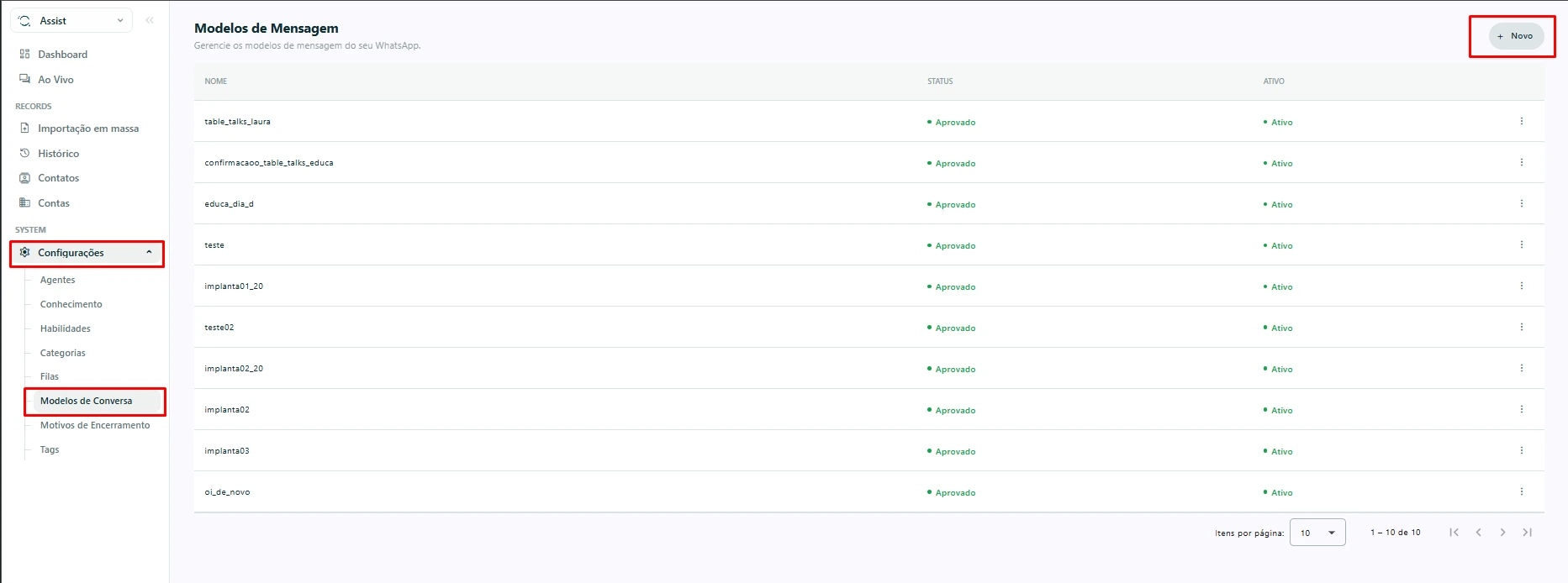
To initiate an outbound WhatsApp conversation, use a Meta-approved message template. Open Settings → Conversation templates → New in Assist, fill in the template and save. Wait for both Approved and Active statuses before using it for the first message.
With the fields complete and the template selected, click Start conversation.
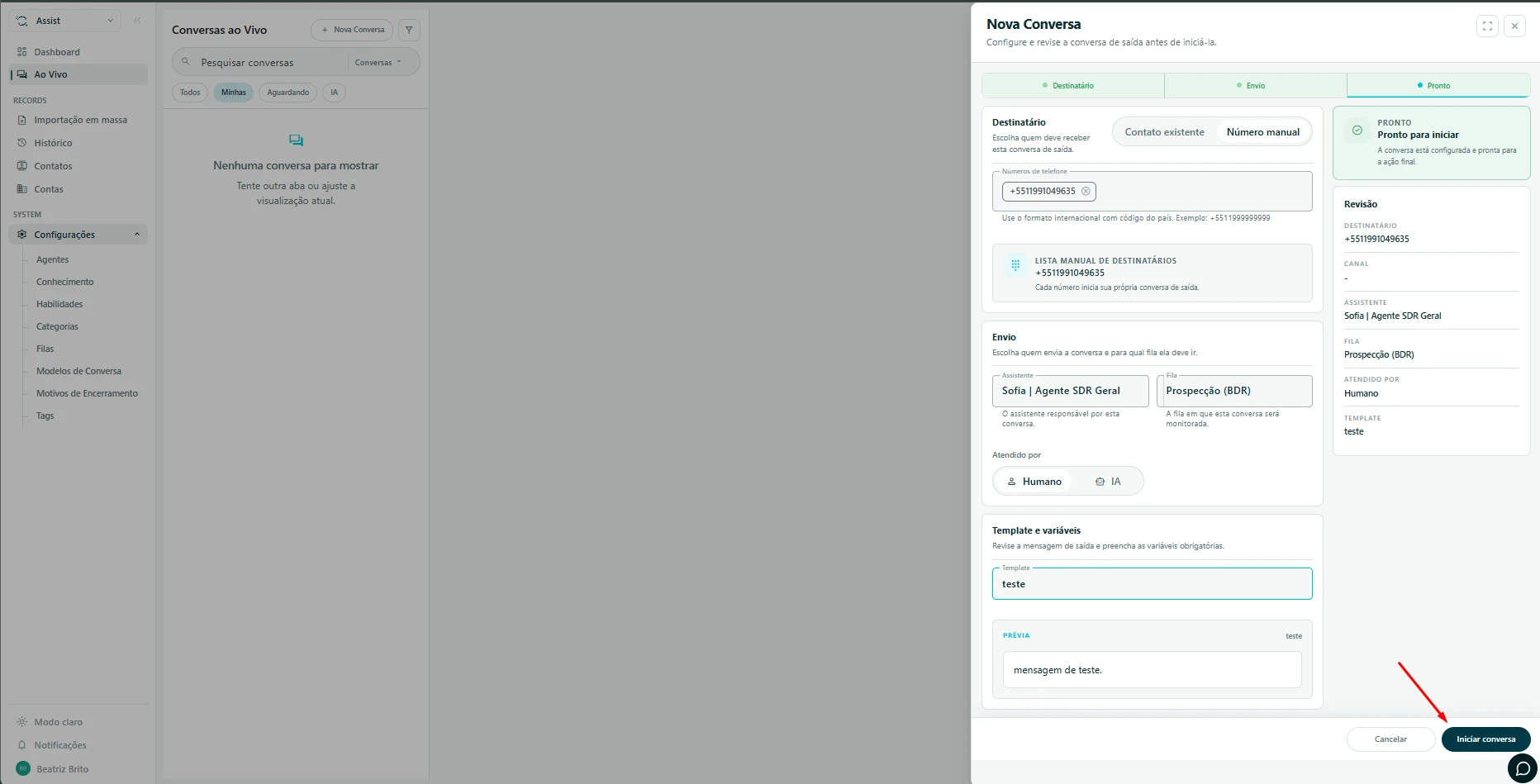
6. Link the contact to monday
After starting the conversation, associate the contact with monday.com. Create a record if the contact does not yet exist on the Contacts board. Otherwise, select the matching record and click Link contact.
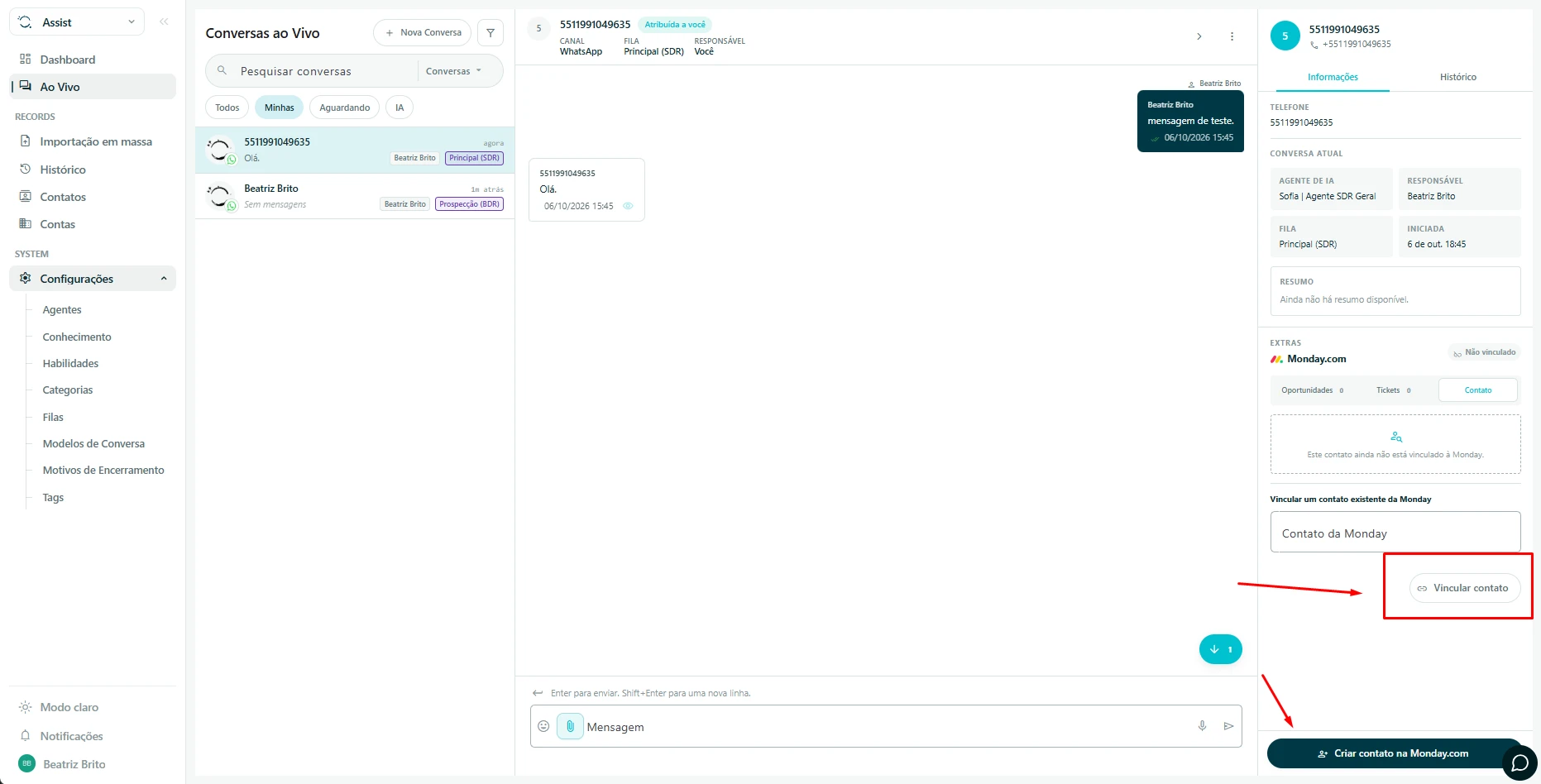
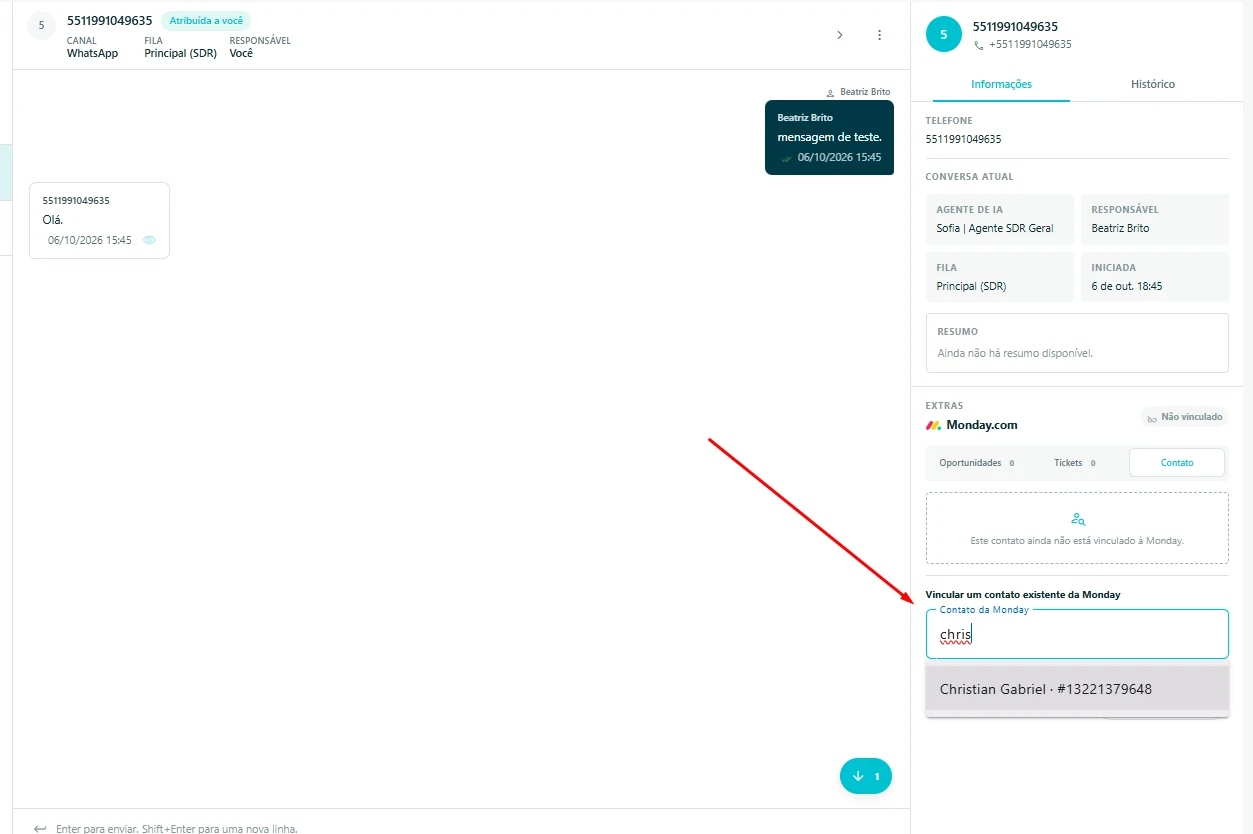
View the mapped fields in the corresponding tabs, such as Contact and Opportunities in the manual’s example.
7. End the conversation to record its history
When the service is complete, end the conversation in mondayZap. This step is required to automatically record the exchanged messages in the linked monday.com record’s activity history.
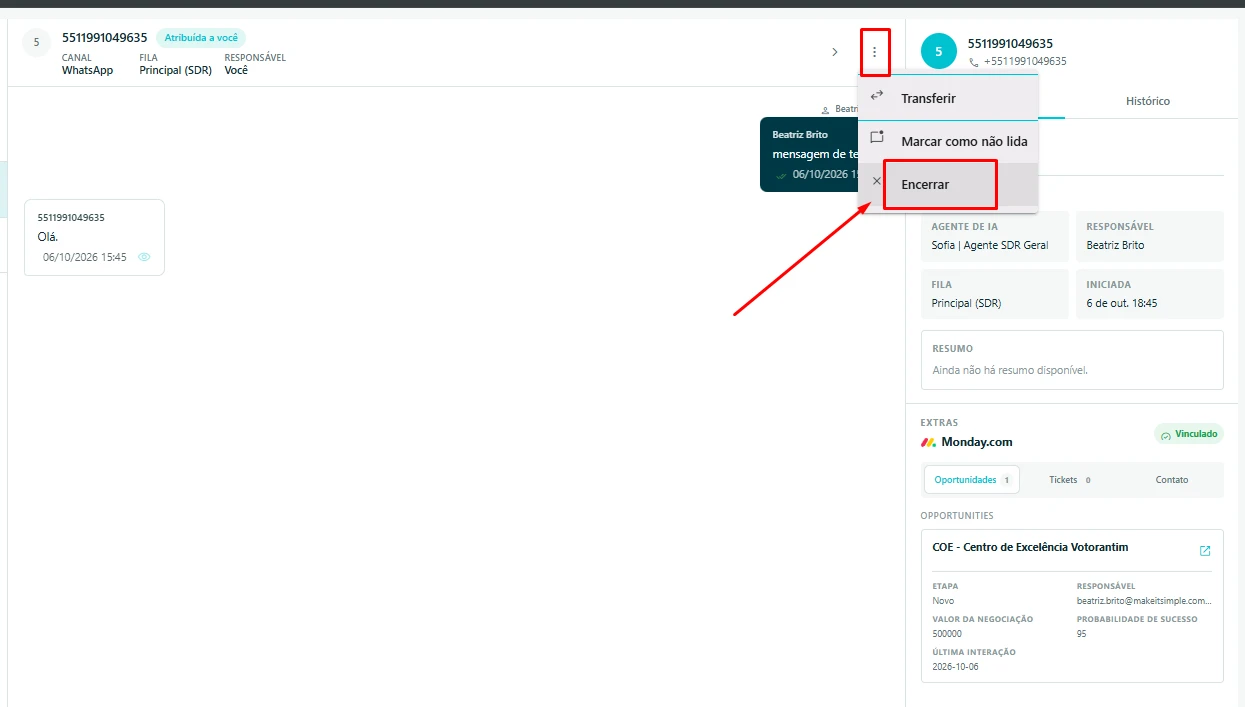
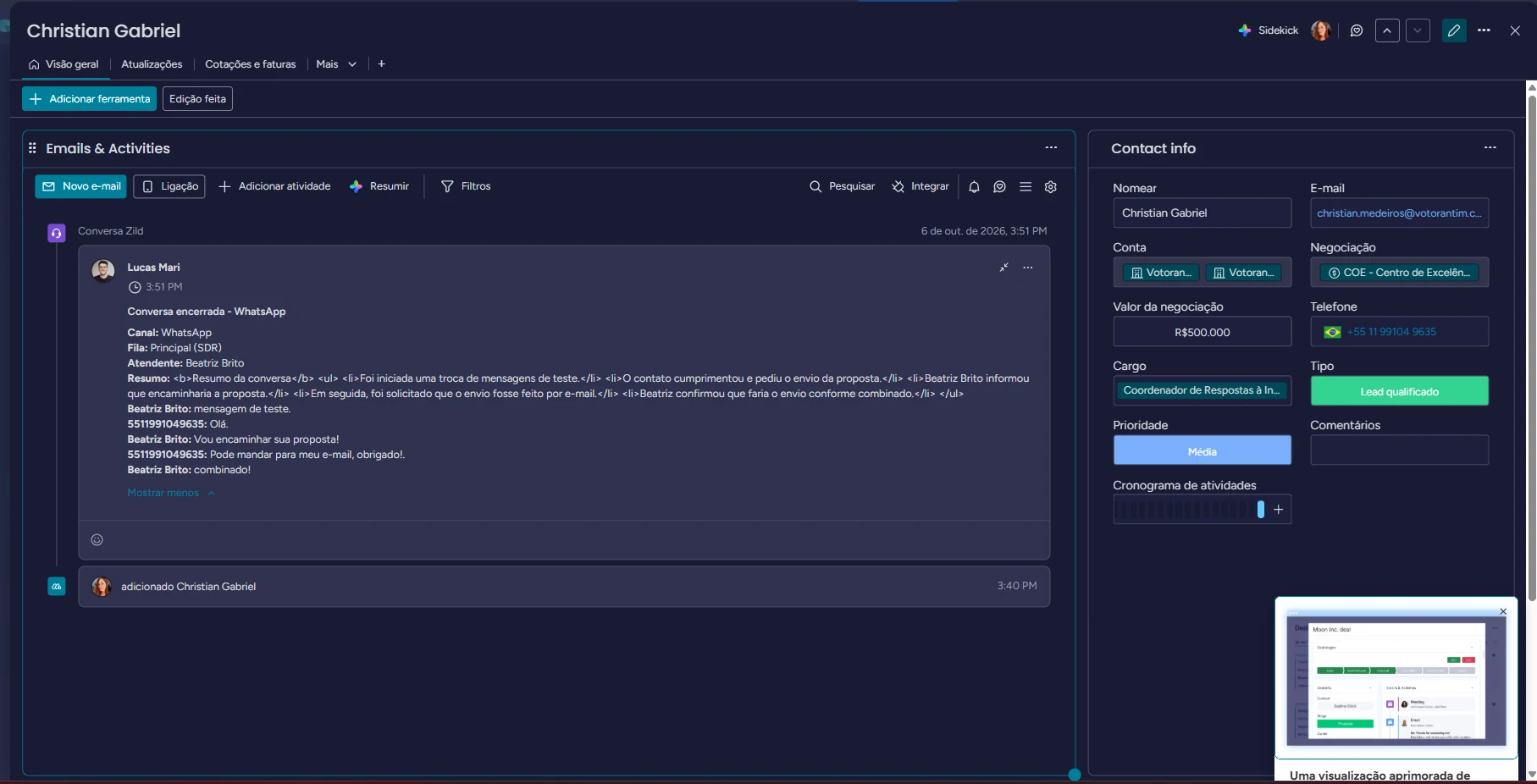
Verify the complete workflow
- The connector saved without errors and the board and column IDs are correct.
- CRM and Service share a single Contacts board.
- Assist fields match the selected From monday columns.
- The outbound template is Approved and Active.
- The contact is linked to the correct monday record.
- The conversation ended and its messages appear in the linked record’s activity history.
Continue with Live service, Conversation templates or Platform integrations.
Based on the mondayZap configuration and usage manual. Screenshots are from the Portuguese manual.
Fields needed by the current integration
These requirements are the data needed by the workflow using the connector. Generic saving may accept empty fields that are only required when an operation runs. Saving does not confirm that the provider accepts the credential.
| Field | Workflow requirement |
|---|---|
ApiKey | Provider API key. |
CustomProperties.ContactBoardId | Positive Contacts board ID to create, find and link contacts. |
CustomProperties.OpportunityBoardId / TicketBoardId | Boards needed by the opportunity or ticket queries your operation uses. |
CustomProperties.OpportunityContactColumnId / TicketContactColumnId | Connect boards columns linking opportunities/tickets to contacts. |
Fields: BoardType, From, To | When adding a mapping, provide the board type, source column and destination label. |
A key is required during monday operations. The current API reads URL and version from server settings Monday:ApiUrl and Monday:ApiVersion, rather than connector Url or ApiVersion. Required boards depend on the operation and must have positive IDs.
On the server: Monday:ApiUrl must be HTTPS and Monday:ApiVersion must be nonempty. The manual specifies https://api.monday.com/v2 and 2026-07; confirm the configured version with your administrator. Each mapping added in the form requires From and To.